
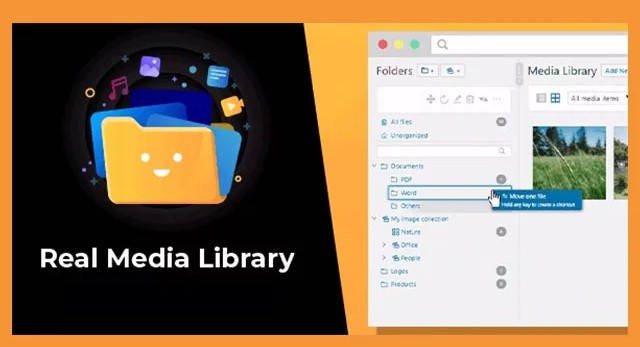
Real Media Library: A WordPress Media Library Folder Plugin for Organized Files
in Plugin on October 13, 2026Organize large WordPress media libraries with folders, collections, shortcuts and gallery-ready media.
A growing WordPress media library can quickly become difficult to navigate. Images, PDFs, videos and audio uploads may all live in one long list, making it slower to locate the right asset when publishing or updating content. Real Media Library – Media Library Folder & File Manager for WordPress is a WordPress plugin designed to bring structure to that process by organizing media into folders, collections and galleries.
Interested in Real Media Library – Media Library Folder & File Manager for WordPress | V-4.22.38? View the product details on BazarPlugin, check the current version and purchase options.
It is aimed at site owners, content teams, freelancers, agencies and developers who manage a substantial volume of uploads. Rather than treating the Media Library as a flat archive, the plugin provides a folder-based workflow with drag-and-drop organization, folder search, direct uploads to selected folders and options for inserting galleries into content.
At a glance
- Product type: WordPress media management plugin
- Main purpose: Organize WordPress media files into folders, collections and galleries
- Suitable media: Images, videos, audio files, PDFs and other documents uploaded to WordPress
- Organization tools: Hierarchical folders, drag and drop, quick folder search and file shortcuts
- Content workflow: Create dynamic galleries with a Gutenberg block or shortcode
- Best fit: Large blogs, content-heavy websites and teams handling thousands of media items
What is Real Media Library for WordPress?
Real Media Library is a WordPress media library folder plugin. Its role is to help you sort and locate uploaded files through a directory-style structure inside WordPress. You can create folders, arrange them hierarchically, group assets into collections and work with galleries from your organized media.
This approach is particularly useful once a website has accumulated years of featured images, downloadable documents, campaign graphics, product visuals, video files or editorial assets. Instead of relying solely on filenames or scrolling through a large media grid, you can create a structure that reflects the way your site and team work.
For example, an editorial site might use folders for years, content sections and individual articles. A business site may separate brand files, case studies, downloadable PDFs and page imagery. An agency can keep client assets, campaigns and project deliverables distinct within each WordPress installation.
Who is it for?
Real Media Library is relevant to WordPress users who need a clearer way to manage a growing collection of uploads. Common audiences include:
- Bloggers and publishers managing article images, author visuals, media resources and downloadable files.
- Businesses that regularly upload brochures, logos, presentations, videos and resource documents.
- Freelancers and agencies that maintain media-heavy sites and need an orderly editorial workflow.
- Store owners who want a more structured way to manage product-related visual and document assets in WordPress.
- Developers and content managers who need to find files efficiently when building, editing or maintaining pages.
- Sites with large libraries where thousands of media files make the default flat Media Library harder to use.
If your site only has a small number of uploads and your current Media Library is already easy to search, a folder system may not be essential. Its practical value grows with the size, variety and reuse of your media assets.
Key features for WordPress media organization
Folders with a hierarchical structure
The core feature is the ability to create folders in the WordPress Media Library. A hierarchical structure lets you arrange media with parent and child folders, helping you move from broad categories to precise asset groups. For instance, a top-level Marketing folder could contain subfolders for Brand Assets, Campaigns and Downloads.
Folders are useful for establishing a consistent process, especially where multiple people upload and reuse media. A sensible naming convention can make assets easier to find long after they were first added.
Drag-and-drop file categorization
Real Media Library includes drag-and-drop functionality for categorizing files into folders. This supports a direct workflow: select the relevant media item, move it to the appropriate location and continue working. It can be useful both when sorting an existing library and when maintaining organization as new material is added.
Upload files directly to a selected folder
Organization does not need to begin after upload. The plugin supports uploading files directly into designated folders, allowing site managers to place new images or documents in the intended category from the start. This is valuable for recurring workflows such as monthly reports, campaign assets, event media or post-specific uploads.
Quick folder search
A detailed folder hierarchy is helpful only when it remains easy to navigate. Quick folder search is included to help users locate the right folder without manually opening every level of the structure. This can be particularly practical on sites with many categories, clients, products or content archives.
Collections, galleries and media shortcuts
In addition to folders, Real Media Library supports collections and galleries. The product information also describes the ability to create file shortcuts in multiple folders. A shortcut can help you surface the same file in more than one relevant location without creating an additional physical copy of that file.
This is useful when an asset belongs to several organizational contexts. A company logo, for example, may be relevant to both a general brand folder and a particular campaign folder. Similarly, a product image could be grouped by product range and by seasonal promotion.
Dynamic galleries for posts and pages
The plugin can be used to add media galleries from your organized library into WordPress content. According to the product information, dynamic galleries can be created with Gutenberg’s block or a shortcode. This makes the plugin relevant not only for back-end file management but also for sites that regularly publish visual collections.
When media is organized first, selecting the appropriate assets for a gallery can become more straightforward. That can benefit portfolio pages, editorial image sets, event recaps, resource libraries and other content where groups of related visuals need to be inserted into a post or page.
Typical use cases
Managing a large editorial archive
A publication may upload images for hundreds or thousands of posts over time. Folders can be arranged around content areas, publication periods, contributors or individual features. When an editor needs to update an older article, this structure can provide a more direct route to its media resources.
Keeping downloadable resources orderly
Many business websites publish PDFs, guides, checklists, presentations and other downloadable content. Organizing these items by department, topic, year or campaign helps maintain a clearer resource archive. It also makes it easier for administrators to locate the correct document when revising a page.
Preparing gallery-based content
Photographers, travel publishers, design studios and event organizers often create posts that depend on curated media groups. Collections and galleries support a workflow where relevant images are organized before they are inserted into Gutenberg content or called through a shortcode.
Organizing media for client sites
Agencies and freelancers can use folders to give each client site a clearer media structure. On a content-heavy installation, folders might separate web page imagery, campaign assets, brand materials, downloads and archived media. The result is a more understandable workspace for future updates.
Supporting a broader WordPress maintenance workflow
Media organization is one part of keeping a busy WordPress site manageable. If you are also reviewing database maintenance, image compression and caching needs, see WP-Optimize Premium – WordPress Performance Plugin. For users comparing approaches to media library organization, WP Media Folder Plugin – By JoomUnited is another related resource available on BazarPlugin.
What to consider before buying
Before choosing a WordPress media library folder manager, begin with your actual content workflow. List the types of files you upload, the people who use them and the way you expect to find them later. A folder structure works best when it reflects routine tasks rather than adding unnecessary complexity.
- Plan naming conventions: Decide how folders will be named before creating a large hierarchy. Clear names help maintain consistency across editors and time periods.
- Decide where shortcuts help: If a file is relevant in more than one place, file shortcuts may be preferable to treating it as separate assets for each category.
- Consider your gallery workflow: If you publish visual collections, confirm whether you want to work through Gutenberg blocks, shortcodes or both.
- Review your WordPress environment: The supplied product information states support for WordPress 5.x/Gutenberg. Check your own WordPress setup and workflow requirements before installation.
- Think about existing files: A large, unsorted library may require time to classify. Start with the media categories that are used most often, then organize older material progressively.
The product information also states that the plugin is designed to avoid collecting personal data without consent and is compatible with GDPR/DSGVO. Compliance obligations can vary by site, location and configuration, so site owners should assess their own requirements.
Frequently asked questions
Is Real Media Library a theme or a plugin?
It is a WordPress plugin. It focuses on organizing the Media Library through folders, collections and galleries rather than changing the visual design of your WordPress theme.
Can Real Media Library organize more than images?
Yes. The supplied product information describes organizing images, videos, audio files, PDFs and other documents in the WordPress Media Library.
Can I create WordPress media folders within folders?
Yes. Real Media Library includes folder creation with hierarchical organization, allowing you to arrange folders and subfolders.
Can one media file appear in more than one folder?
The product information states that you can create shortcuts of files in multiple folders, helping you organize a file in more than one context without creating additional physical storage copies.
Can I use organized media to create galleries?
Yes. The plugin supports creating dynamic galleries from the organized media library using Gutenberg’s block or a shortcode.
Conclusion
Real Media Library – Media Library Folder & File Manager for WordPress is built for WordPress users who need more control over a busy Media Library. Its folders, hierarchical organization, drag-and-drop workflow, quick folder search, file shortcuts and gallery options address practical challenges around finding, grouping and reusing uploaded assets.
For large blogs, resource-driven business sites, agencies and media-heavy WordPress projects, it can provide a more structured way to manage files as the library grows. Visit the Real Media Library product page on BazarPlugin to review the available product listing and purchase options.
Get Real Media Library – Media Library Folder & File Manager for WordPress | V-4.22.38
Ready to use this plugin on your WordPress site? See the product page on BazarPlugin for the current version and purchase details.